A four-step walkthrough for verifying your email, setting your password, and logging in for the first time. About five minutes start to finish.
Heads up: your two setup emails come from no-reply@auth0user.net. Outlook may flag them with a "you don't often get email from" warning. That's expected, and the links are legitimate.
01
Verify your email
First, prove the account belongs to you by clicking the verify link in your invite email.
Step 1.1
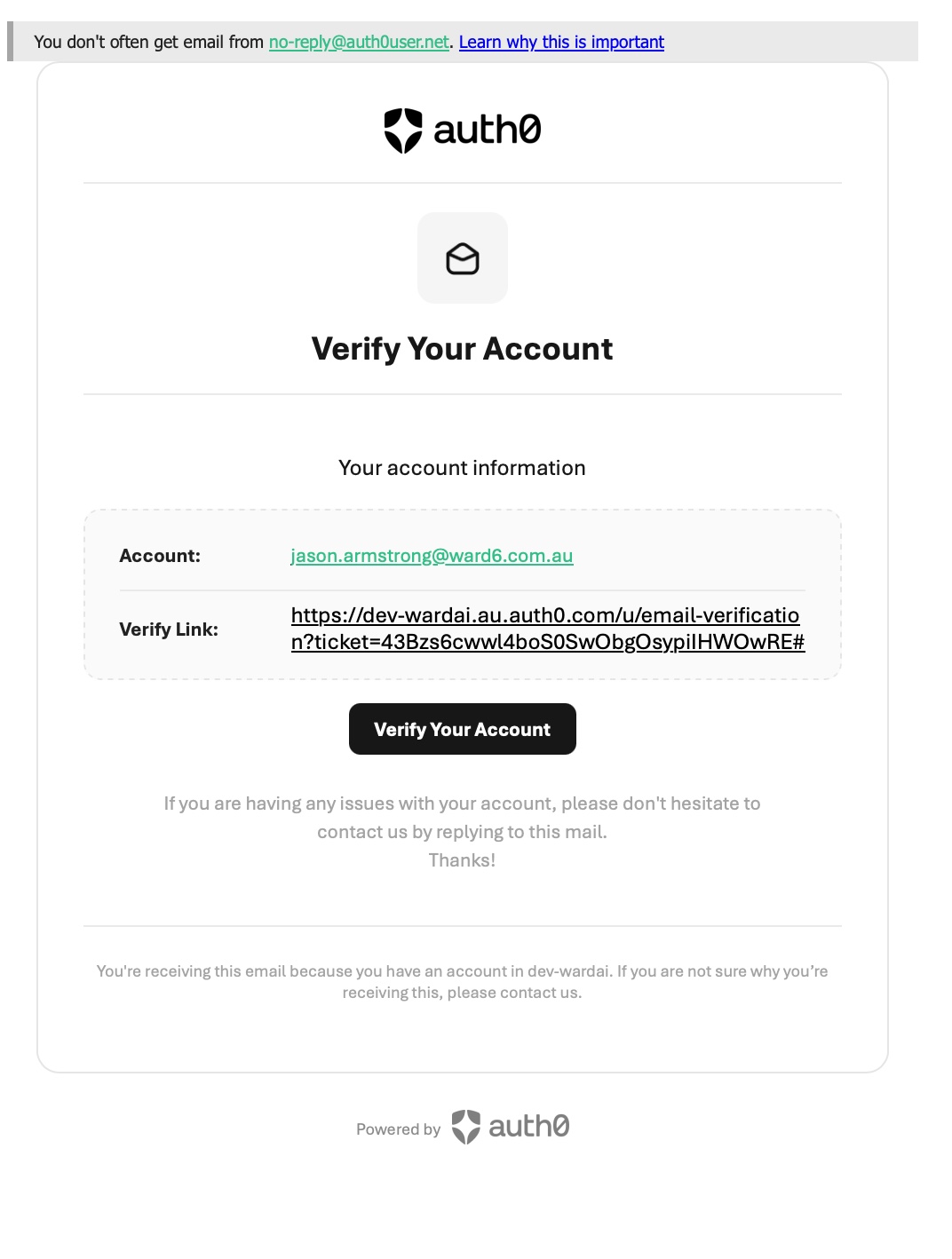
Find the verification email in your inbox
Look for an email from dev-wardai with the subject "Verify your email." It usually lands within a minute or two of your invite being sent.
Can't find it? Check Junk or Other. The sender is no-reply@auth0user.net.
In your inbox
Step 1.2
Open it and click Verify Your Account
Open the email. Check the account address shown matches yours, then click the Verify Your Account button.
Click Verify Your Account
Step 1.3
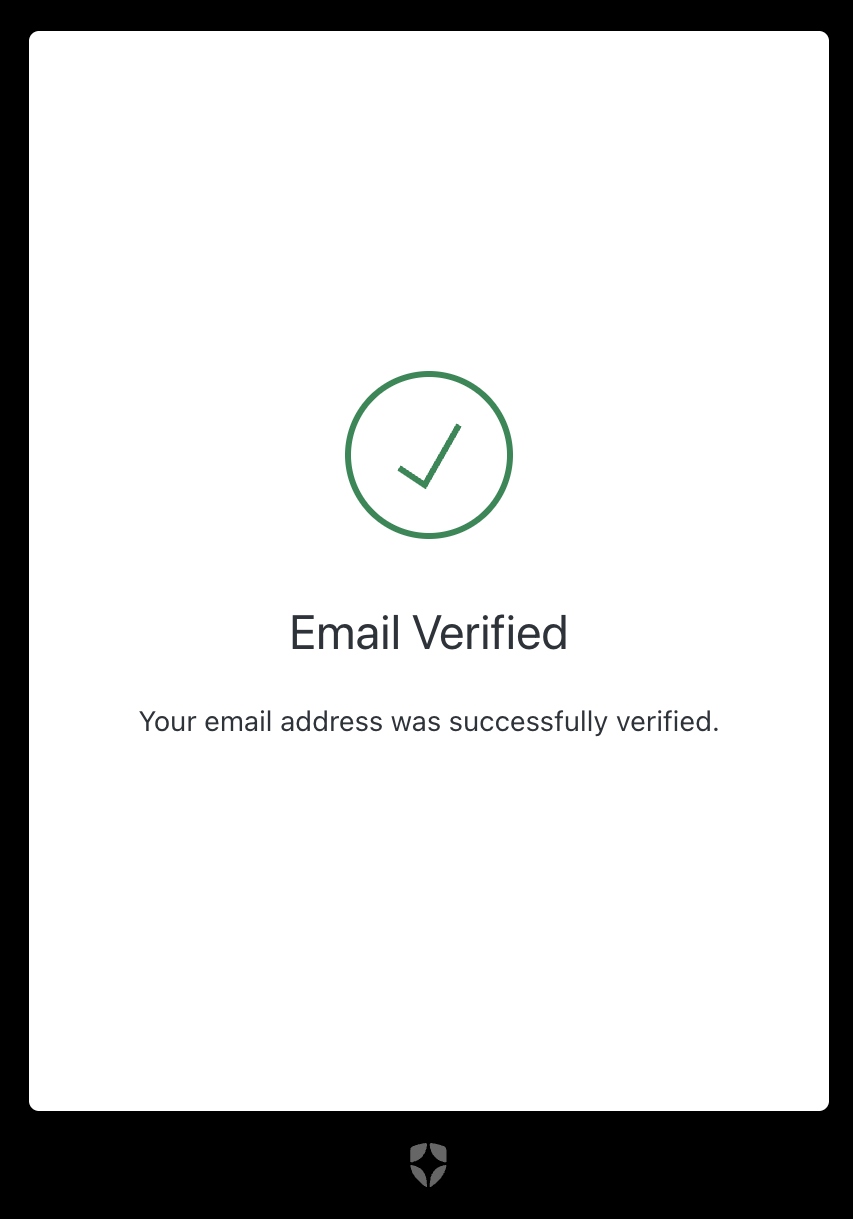
Confirm the email-verified screen
A browser tab opens showing a green tick and the message "Email Verified." You can close this tab. Verification is done.
Verification complete
02
Request a password reset
Your account already exists, but doesn't have a password yet. The reset flow is how you set one for the first time.
Step 2.1
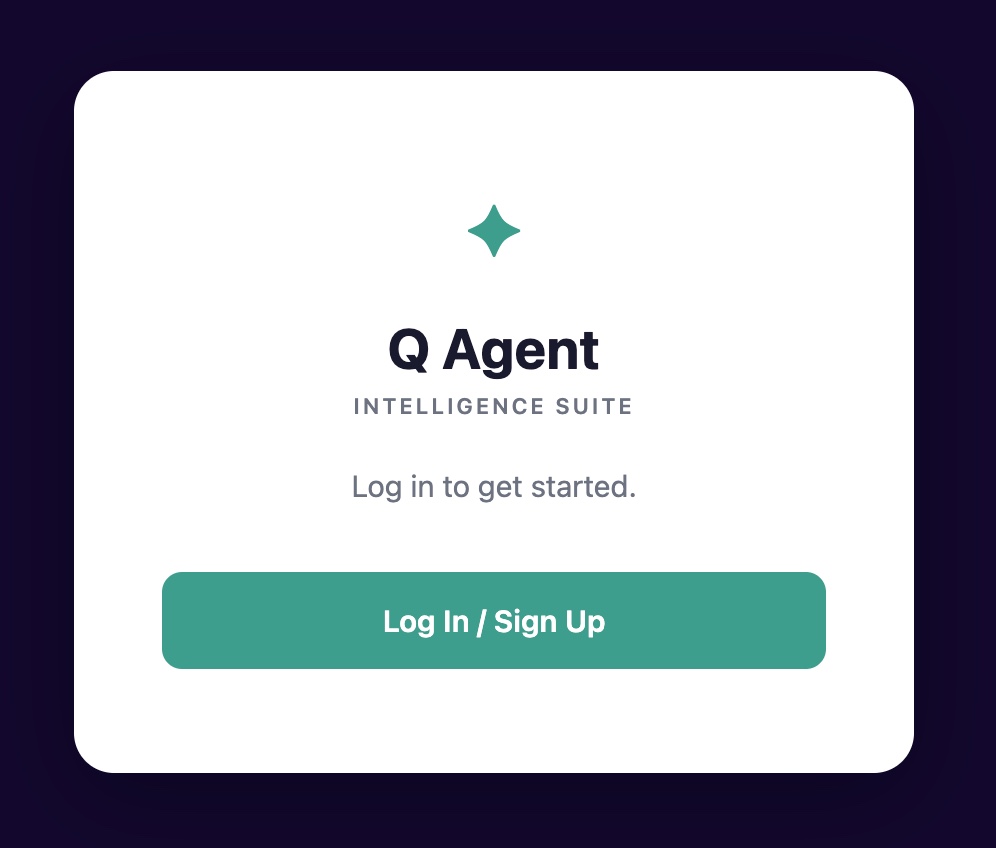
Go to wardai.au and start sign-in
In your browser, go to wardai.au. You'll see the Q Agent Intelligence Suite welcome screen. Click the green Log In / Sign Up button.
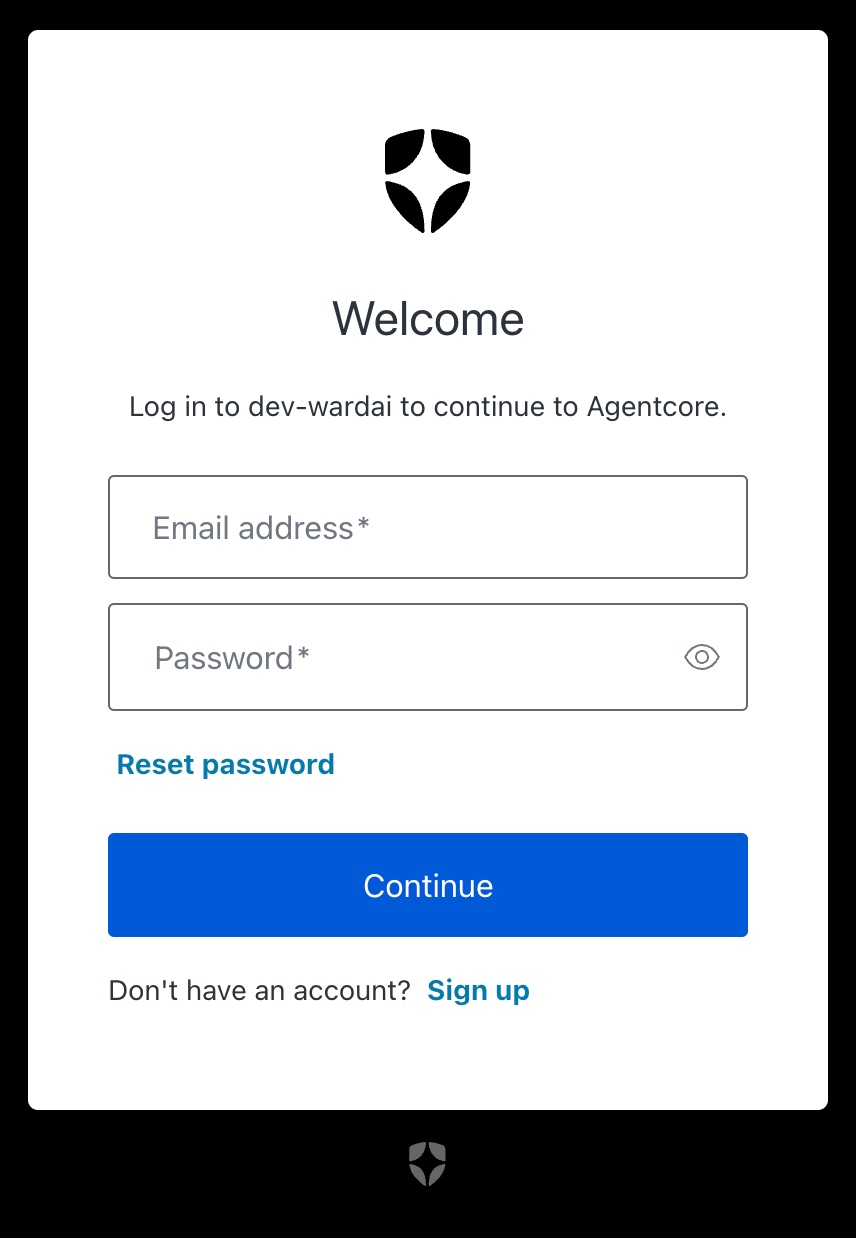
Don't enter anything yet. You don't have a password set. Click the Reset password link below the password field.
Why reset, not sign up? Your account already exists from your invite. The reset flow is how you set a password for the first time.
Use Reset password, not Continue
Step 2.3
Enter your email on the reset form
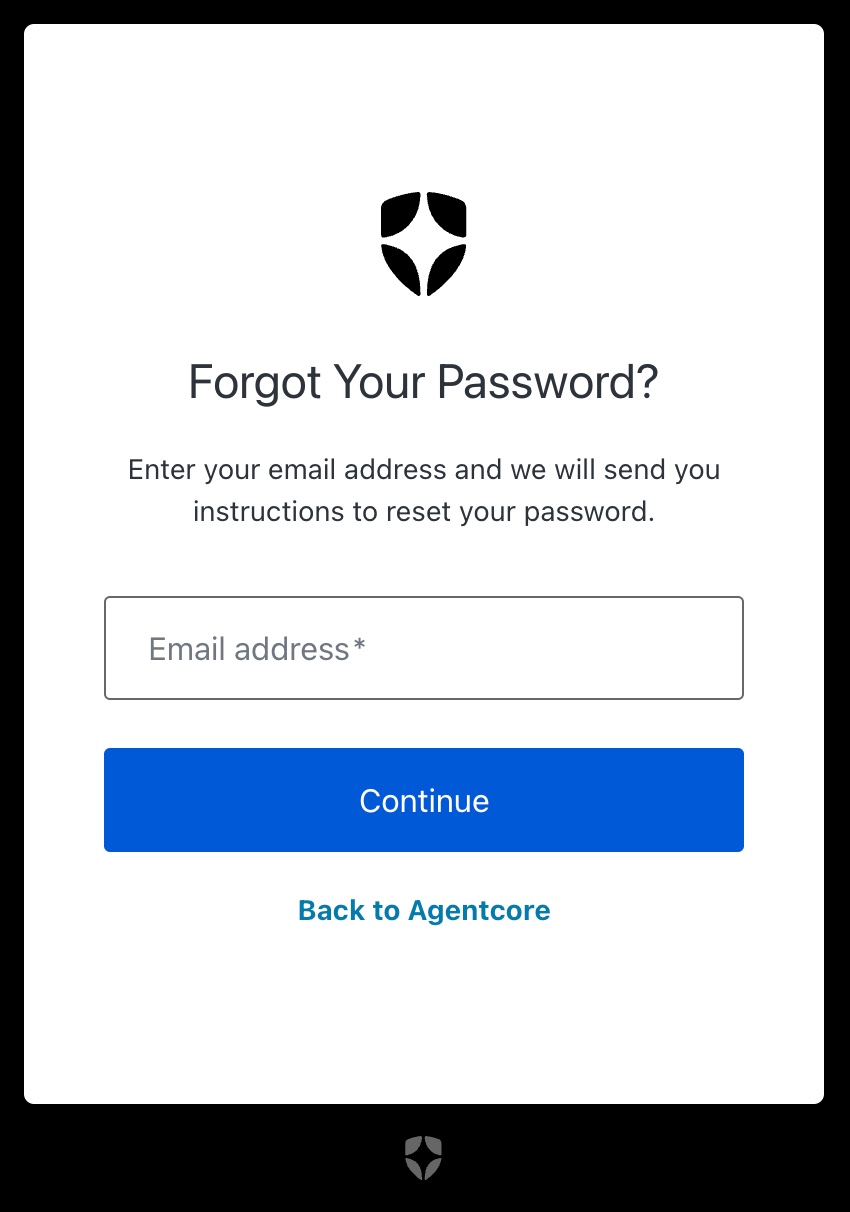
On the Forgot Your Password? screen, type the same email address your invite was sent to, then click Continue.
Enter your email, then Continue
Step 2.4
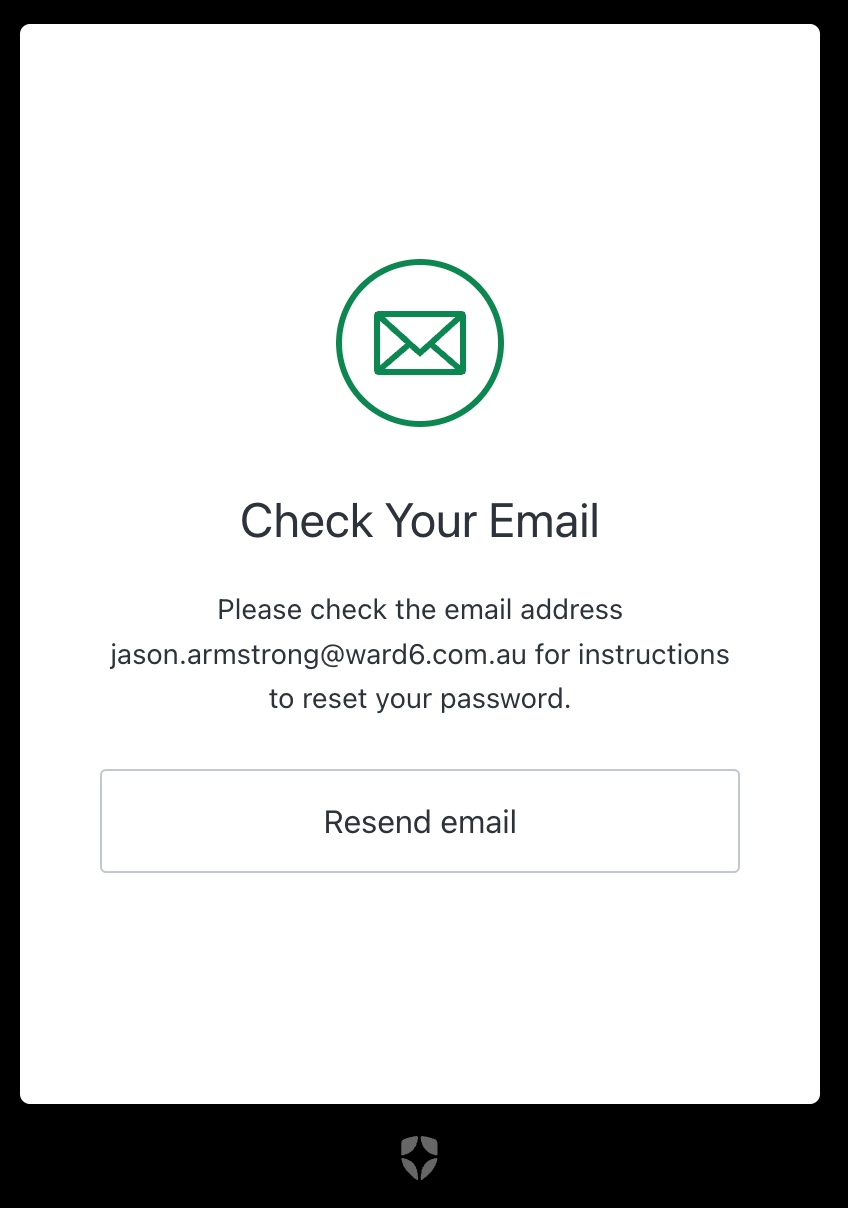
Leave the "Check Your Email" window open
You'll see a confirmation that reset instructions are on their way. Keep this tab open. If the email doesn't arrive in a couple of minutes, you can click Resend email from here.
Leave open as a backup
03
Set your new password
Pick something strong, save it in your password manager, and you're almost in.
Step 3.1
Find the reset-password email in your inbox
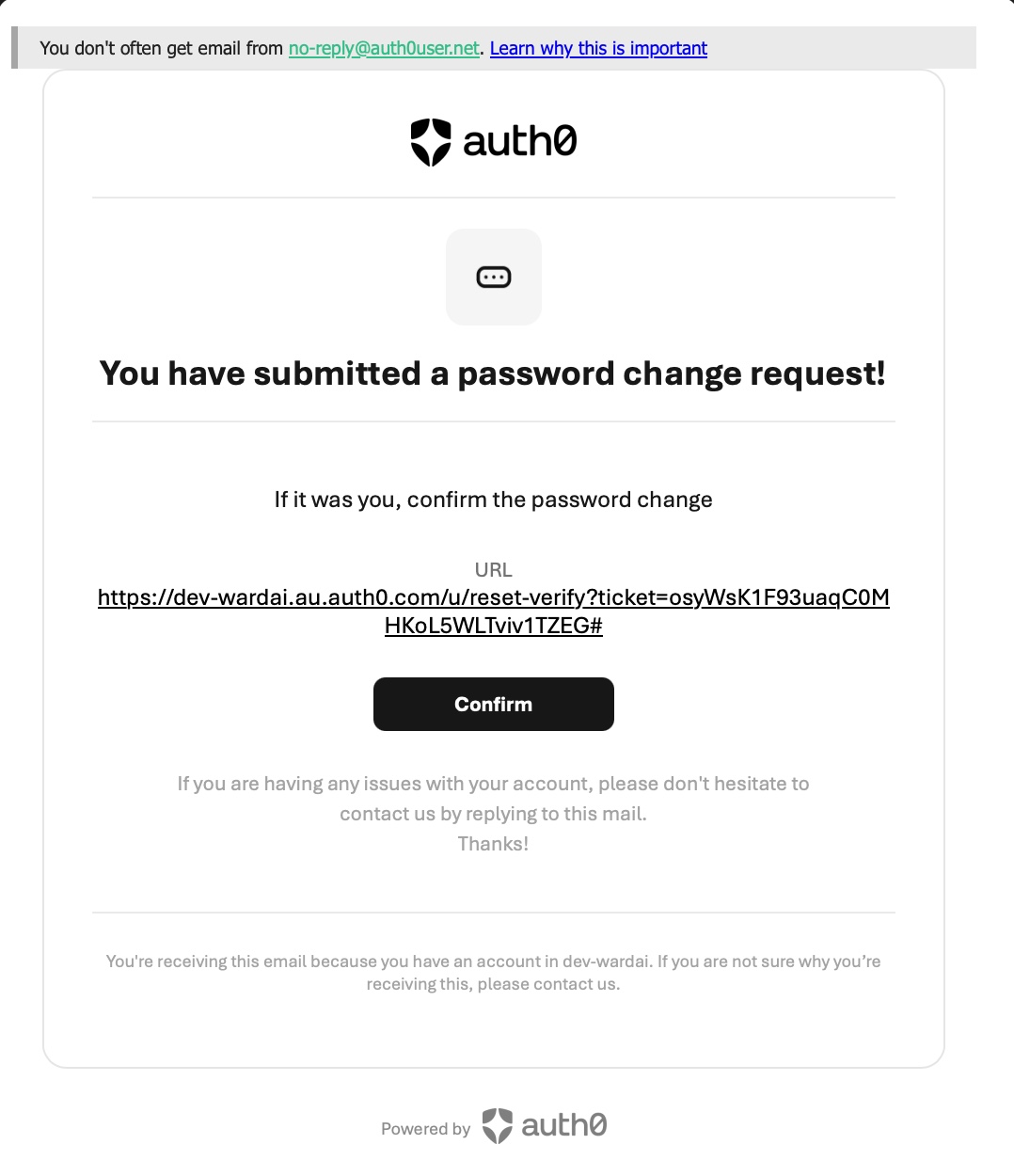
Switch to your inbox. Look for an email from Agentcore with the subject "Reset your password."
In your inbox
Step 3.2
Open it and click Confirm
Open the email. You'll see a message that you've submitted a password change request. Click the Confirm button.
Click Confirm
Step 3.3
Set your new password
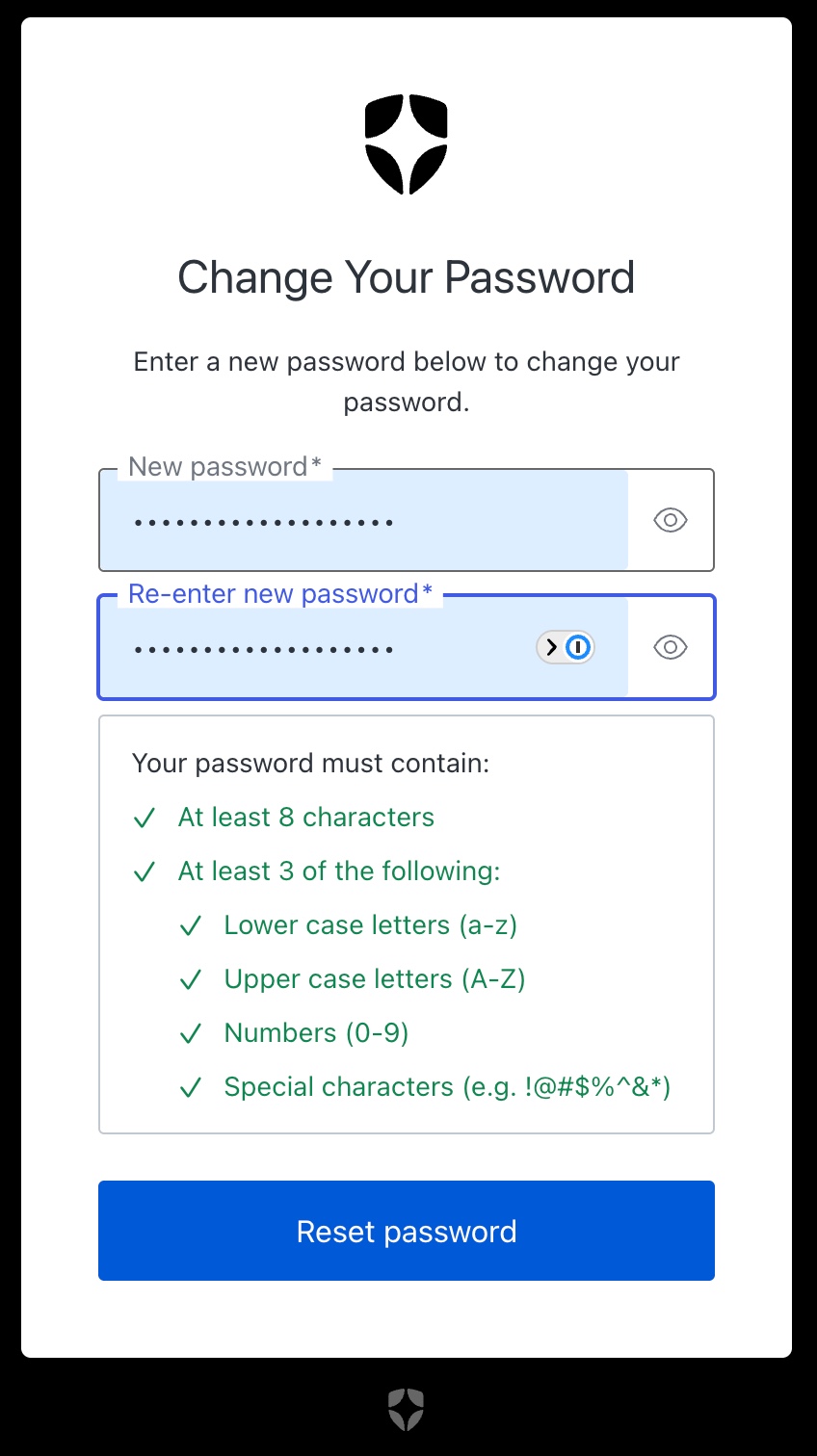
On the Change Your Password form, enter your new password and re-enter it to confirm. The requirements panel turns each item green as you meet it. Your password must:
Be at least 8 characters
Contain at least 3 of: lower case, upper case, numbers, special characters
When everything is ticked, click Reset password.
Save it: pop your new password into your password manager so you don't have to do this again.
Wait for all requirements to turn green
Step 3.4
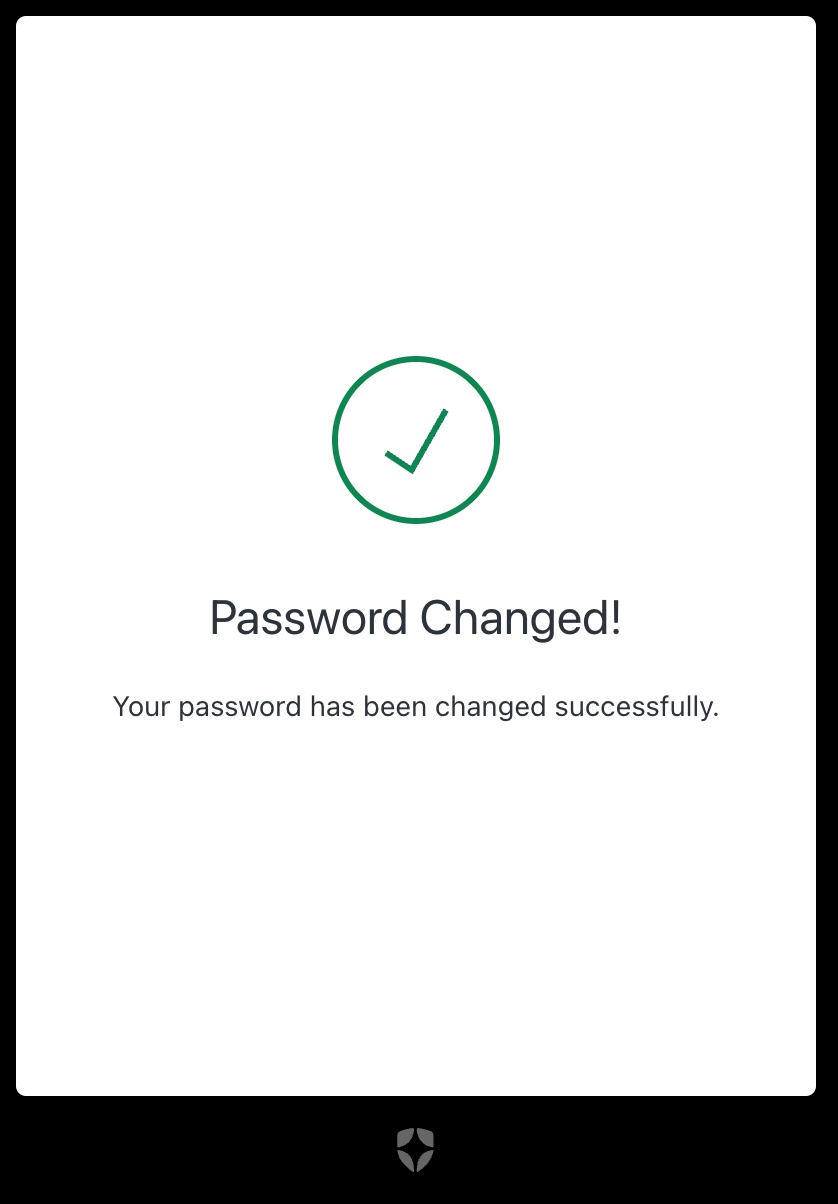
Confirm the password-changed screen
You'll see a green tick with "Password Changed." That's the setup complete.
One more step
04
Log in to Ward6AI
Head back to the platform and sign in with your new password.
Step 4.1
Return to wardai.au and sign in
Go back to wardai.au and click Log In / Sign Up again. On the login form, enter your email address and the new password you just set, then click Continue. You're in.
Bookmark wardai.au so it's just one click next time.
To bookmark this page, press ⌘ + D on Mac, or Ctrl + D on Windows.
Same form, now you have the password
Stuck on any step? Take a quick screenshot of what you're seeing and send it to Jason. We'll get you sorted.
Ward6AI Platform · Tools
Export to Word
Export to Word turns what the AI produces (a report, a draft or a summary) into a properly formatted Microsoft Word document whenever you ask for one. Just say something like "save this as a Word doc" and a finished .docx is generated for you to download.
Download the skill package below to install it in your Ward6AI workspace.
We've enhanced the Export to Word feature so that the bulk of the work now happens inside the shared engine itself, rather than being handled separately each time. This means every tool that produces a Word document now gets the same polished, consistent result automatically, including richer formatting like proper tables, highlighting, callout boxes and page breaks that wasn't available before.
02
Why the skill stays installed
Even though the engine does the formatting, the skill provides the layer that makes it work well in practice:
It recognises when you want a Word document (from natural phrasing like "save this as a doc" or "turn this into a Word file"), so the right output is produced reliably.
It makes full use of the engine's formatting features, rather than defaulting to plain text.
It applies sensible conventions, such as clear file naming and a consistent finished layout.
It routes more designed or templated documents to the dedicated document-formatting tools, so the right kind of output is produced for each task.
In short: the engine now does the heavy lifting and guarantees consistency, while the skill makes sure it's used in the right situations, in the right way, every time.
Ward6AI Platform · Skills
Skills
The specialist tools available in your Ward6AI workspace. Proof Check and the Reference & Claim Checker each come in a Ward 6 and a Ward 7 version; install the one that matches your brand silo. The Document Element Extractor, Email Drafter and Word Document Formatter are single, brand-agnostic skills.
Managing your skills
Learn how to add a new skill to your workspace, or remove one you no longer need.
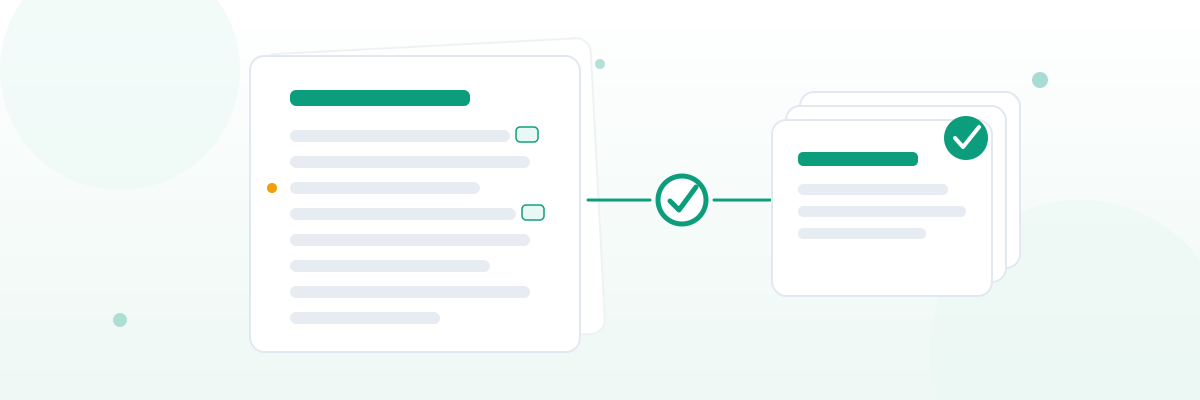
Proof Check reviews a finalised, design-ready document against your house style (spelling, punctuation, style, references and terminology) and flags every issue it finds for the writer to review, without changing the document itself.
When a medical writer has a finalised PDF (or Word document) ready for sign-off, Proof Check reads the text against the Ward house style, the references style and the brand's approved terminology, and produces a Word report listing each issue in document order, with the page, a short description, the rule it relates to, and a confidence level.
It works through a fixed checklist of rules one at a time and shows that audit at the end, so you can see every rule was checked. It is review-only: it identifies and locates issues but never rewrites the document. The writer makes every editorial decision. Install the Ward 6 version for Ward 6 brands (Veltassa and Maviret) and the Ward 7 version for Ward 7 brands (Kisqali and Kesimpta).
How to use it
Upload the finalised PDF (or Word document) straight into the chat and ask for a proof check, for example: "Run a proof check on this." If the file already lives in your Knowledge Base, you don't need to upload it again, just name it: "Run a proof check on Veltassa_eDM_v3.pdf from the knowledge base." The skill confirms the brand with you before it starts.
You'll get a Word report back in the chat, listing every issue in document order with its page, a short description, the rule it relates to and a confidence level, plus an audit table at the end. It only flags and locates issues; it never changes your file.
Interactive PDFs, e-detailers and IVAs
Some sources carry no usable page numbers — compressed or interactive PDFs, e-detailers and IVAs often have no embedded pagination, or the runtime's physical page numbers don't match the piece's own pages. When a page number wouldn't help you find an issue, Proof Check switches to a section-based locator: each finding is located by the main section from the piece's navigation, then the nearest preceding heading, then any other cue (panel, callout, slide label). The opening summary states explicitly that the document has no reliable page numbers and that locations are given as section then nearest heading.
What this skill needs: Proof Check loads its rules from the shared Skill references folder: the relevant Ward Rules Checklist (Ward 6 or Ward 7), plus the matching brand's Approved Terms file. At this stage, for the pilot, these reference files are uploaded and maintained by Brandunity.
The Reference & Claim Checker cross-checks every product claim in a draft against the brand's approved claims library, flagging the issues that matter for MLR review, before the draft reaches the reviewer.
For a draft going through Medical, Legal and Regulatory (MLR) review, the tool matches each substantive product claim against the approved claims library and checks six things: missing references, mismatched citations, missing qualifiers, unknown claims (not in the library), disallowed claims (such as superlatives), and citation-format inconsistencies.
It produces a Word report grouping the findings by type (with the matched library entry, what is cited versus what the library expects, and a suggested action for each), plus an audit table confirming every approved claim was checked. Like Proof Check it is review-only, comes in Ward 6 and Ward 7 versions, and needs the brand's approved claims library loaded to run.
How to use it
Upload the draft (PDF or Word) into the chat, or name a file that's already in your Knowledge Base, and ask for a check. Tell it the audience so it can apply the channel rules, for example: "Run a reference and claim check on this HCP detail aid," or "Run a reference and claim check on Kisqali_detail_aid.pdf from the knowledge base." The skill confirms the brand with you before it starts.
You'll get a Word report back in the chat, grouping the findings by type, with the matched library entry, what is cited versus what the library expects, and a suggested action for each, plus an audit table confirming every approved claim was checked. Like Proof Check, it is review-only and never changes your draft.
What this skill needs: the Reference and Claim Checker loads from the shared Skill references folder: the relevant Ward References Style file (Ward 6 or Ward 7), plus the matching brand's Approved Claims library. At this stage, for the pilot, these reference files are uploaded and maintained by Brandunity.
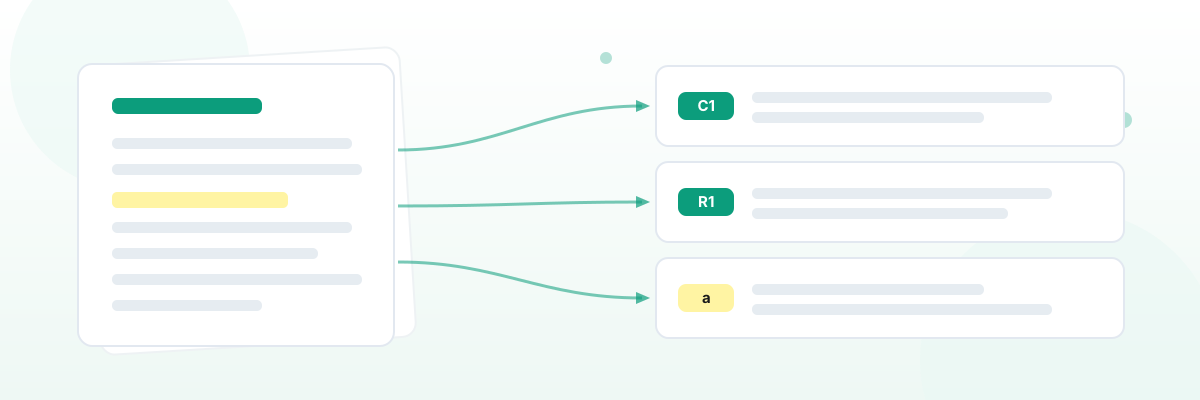
The Document Element Extractor turns a finalised, approved document into a structured, reusable breakdown. It pulls out every claim with the qualifiers and references that substantiate it, plus a deduplicated reference list, the mandatory prescribing information, footnotes and abbreviations, ready to seed a claims library or repurpose into new materials.
Given any finalised, approved document (a Product Information, an approved claims list, a study summary, an eDM, a detail aid or a patient brochure), the extractor reads the text and produces a Word document organised around claims. Each claim is shown with the qualifiers and references that support it, alongside deduplicated lists of references, the mandatory prescribing information, footnotes and abbreviations. The references are also provided as copy-and-paste EndNote and RIS blocks at the end, ready to import into a reference manager.
It assumes the document is already approved and does not check claims for compliance; that is the Reference & Claim Checker's job. Like the other skills it is review-only: every extracted element must be verified against the source document before it is added to a library or reused.
How to use it
Upload a finalised, approved document (PDF or Word) into the chat, or name one that already lives in your Knowledge Base, and ask it to extract the elements, for example: "Extract the elements from this," or "Pull out the claims and references from Veltassa_PI.pdf from the knowledge base."
You'll get a Word document back in the chat: a claim-by-claim breakdown with qualifiers and references, the deduplicated reference list, the mandatory text, footnotes and abbreviations, plus the EndNote and RIS export blocks at the end. It only reads and reorganises the source; it never changes your original document.
What this skill needs: nothing beyond the document itself. Unlike the other skills, the Document Element Extractor is brand-agnostic, so there is a single version that works for any brand or company, and it does not load any reference library. Just give it a finalised, approved document and it does the rest.
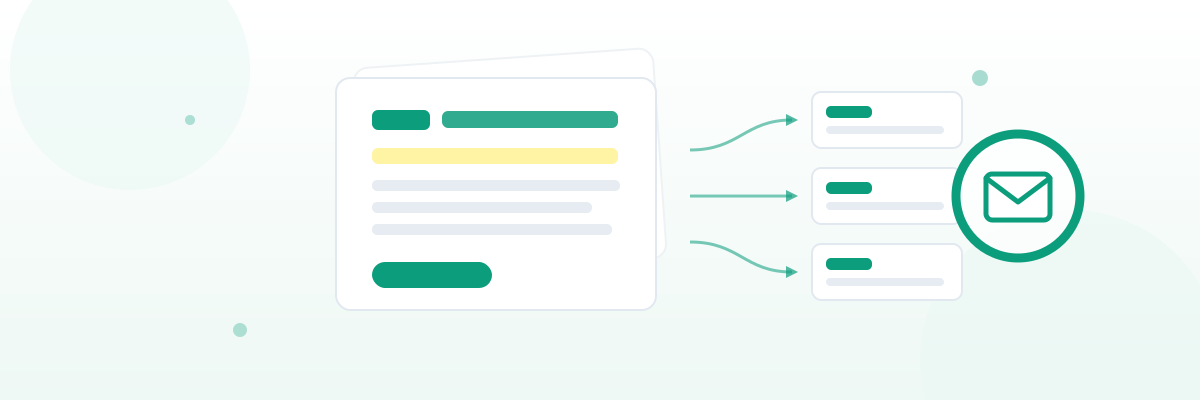
The Email Drafter generates an early, labelled HCP email draft — Standard, Veeva Approved Email or eWizard — from your brand's approved claims library and voice guide. One brand-agnostic skill handles every Ward 6 and Ward 7 brand.
Drafting an email means juggling the template's structure and limits, the brand voice, the audience and the approved messaging all at once. The Email Drafter produces a first draft that honours the chosen template, pulling every claim only from the approved claims library and flagging anything the brief implies but the library doesn't support, rather than inventing it.
Every element is labelled — Subject lines, Preheader, Header, Body, CTA, Citations, Mandatories — so you can see how each piece maps to the template, and so the draft flows straight into the Word Document Formatter. For two or more audiences it produces one draft each plus a cross-version comparison table. It drafts only; checking and formatting are other skills' jobs.
How to use it
Ask it to “draft an email”, “draft a VAE” or “draft an eWizard email”. It detects the brand, then asks once for the template, audience segment(s), the email's goal, any images to place, and whether you want icon suggestions.
You'll get a Word document back: a header showing what was loaded, the per-audience drafts with every element labelled, a cross-version comparison table where relevant, and a gaps-and-flags section. It's an early draft for the medical writer to refine before MLR.
What this skill needs: the brand's Approved Claims and Approved Terms files plus the ward's House Style and References Style, from the shared Skill references folder. Email Templates, Voice & Tone and Audiences are optional with sensible fall-backs — by default it drafts in a built-in standard email format, using the brand's template (or a VAE / eWizard template) only when one is supplied and requested, and applying a safe default voice when no voice guide is loaded. This consolidated, brand-agnostic version supersedes the earlier per-brand drafters and depends on the new render_email_draft Lambda tool, which is pending deployment.
The Word Document Formatter applies Ward house style to a labelled draft and returns a publish-ready Word document — cover sheet, header and footer, per-element styling and page numbering. One brand-agnostic, ward-aware skill handles every Ward 6 and Ward 7 brand.
Writers produce drafts marked up with bracketed tags like [Head], [Body], [Callout] and [CTA] that show the hierarchy but carry no formatting; the studio then re-keys them by hand. This skill does that re-keying automatically, preserving the writer's copy verbatim and adding only formatting and document structure.
It supports six document types (HCP email, EDM, detail aid, eDA brief, case study, training) plus a generic fallback, each with its own cover, header and footer. Anything it can't classify confidently is given best-guess formatting and flagged, both inline and in an opening summary. Images become text placeholders for the studio to source.
How to use it
Submit a labelled draft and ask to “format this draft” or “apply Ward house style”. It detects the brand, then asks once for the ward, document type and any missing cover-sheet details.
You'll get a publish-ready Word document: a cover sheet, an opening summary listing the document type and every flagged item, the formatted body, a running header where the document type uses one, a footer with live page numbers, and the mandatories block. Run Proof Check or the Reference & Claim Checker on the result before MLR.
Section labels and multi-version structure
The skill adds visible subheads ahead of each multi-item section (Subject lines, Preheader options, Footnotes, References, Mandatories) so two numbered lists in a row are never ambiguous. Single-item blocks already typed by their element (Header, Subhead, Body, Callout, CTA) are not double-labelled.
When a draft contains more than one audience version — typical of an Email Drafter output with both a GP and an Oncologist version — the skill emits a heading at the start of each version (“Draft: GP”, “Draft: Oncologist”) and groups that version's blocks beneath it. Source order within each version is preserved exactly as the writer composed it.
What this skill needs: one small <Brand> Brand Values.md file (sponsor details and a fallback mandatory disclaimer) from the shared Skill references folder; the visual spec is baked into the skill. Ward 6 currently uses the Ward 7 visual spec until its own is published. This consolidated, brand-agnostic version supersedes the earlier per-brand formatters and depends on the new render_formatted_document Lambda tool, which is pending deployment.
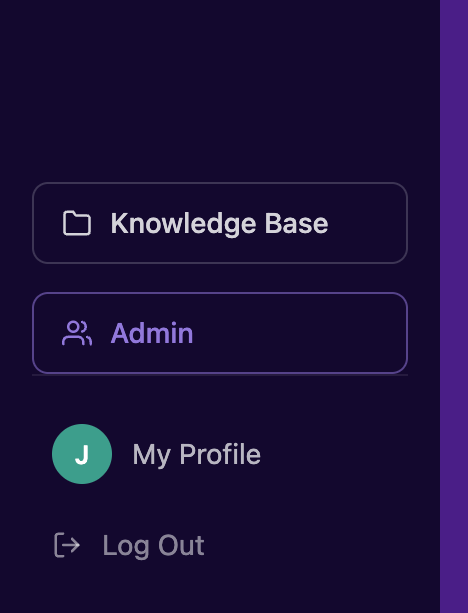
Log in to the portal. In the menu sidebar on the left, find the Knowledge Base button near the bottom, and click it.
Bottom-left of the sidebar
02
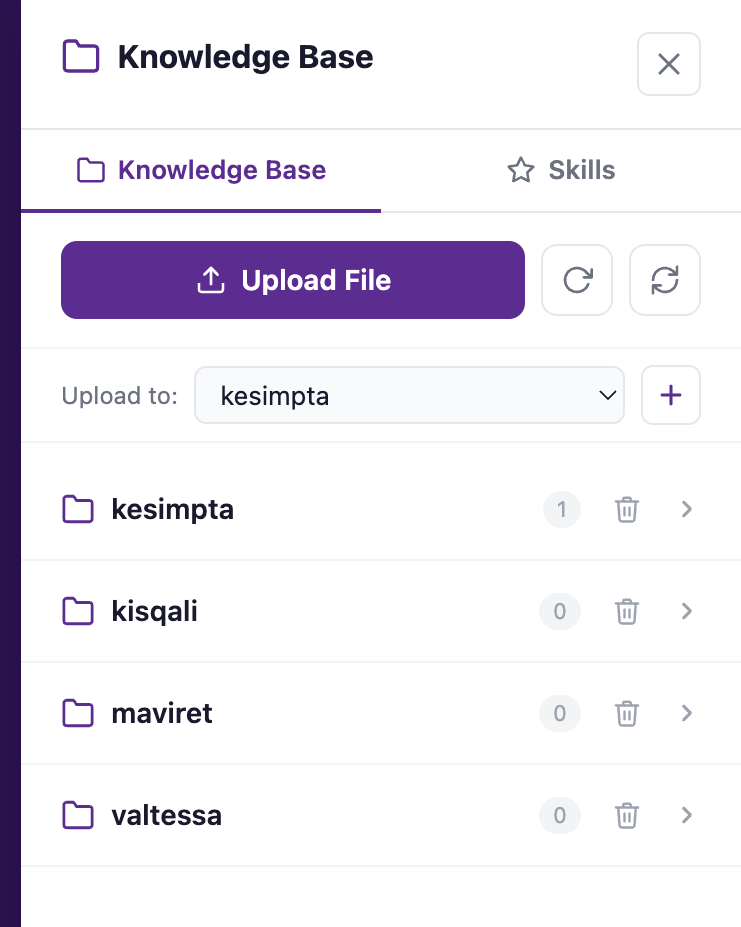
The panel opens on the Knowledge Base
A panel slides out on the right. By default it shows the Knowledge Base, which is where most of your work in this panel happens.
The panel, Knowledge Base tab
03
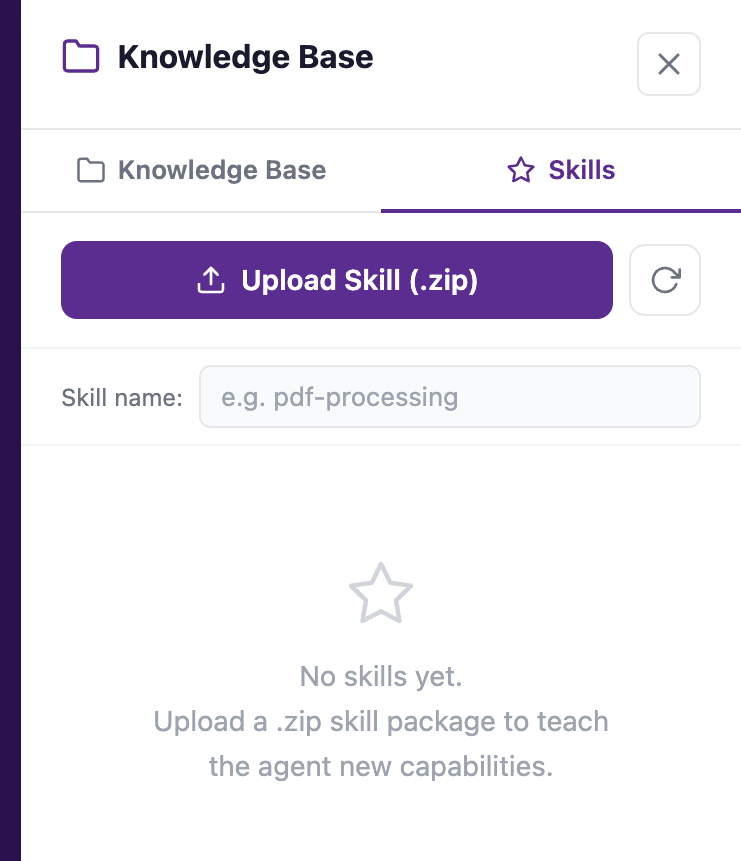
Switch to the Skills tab
At the top of the panel, click the Skills tab (the one with the star icon). This is where you upload, search, refresh and delete skills.
The Skills tab
04
Upload the skill file
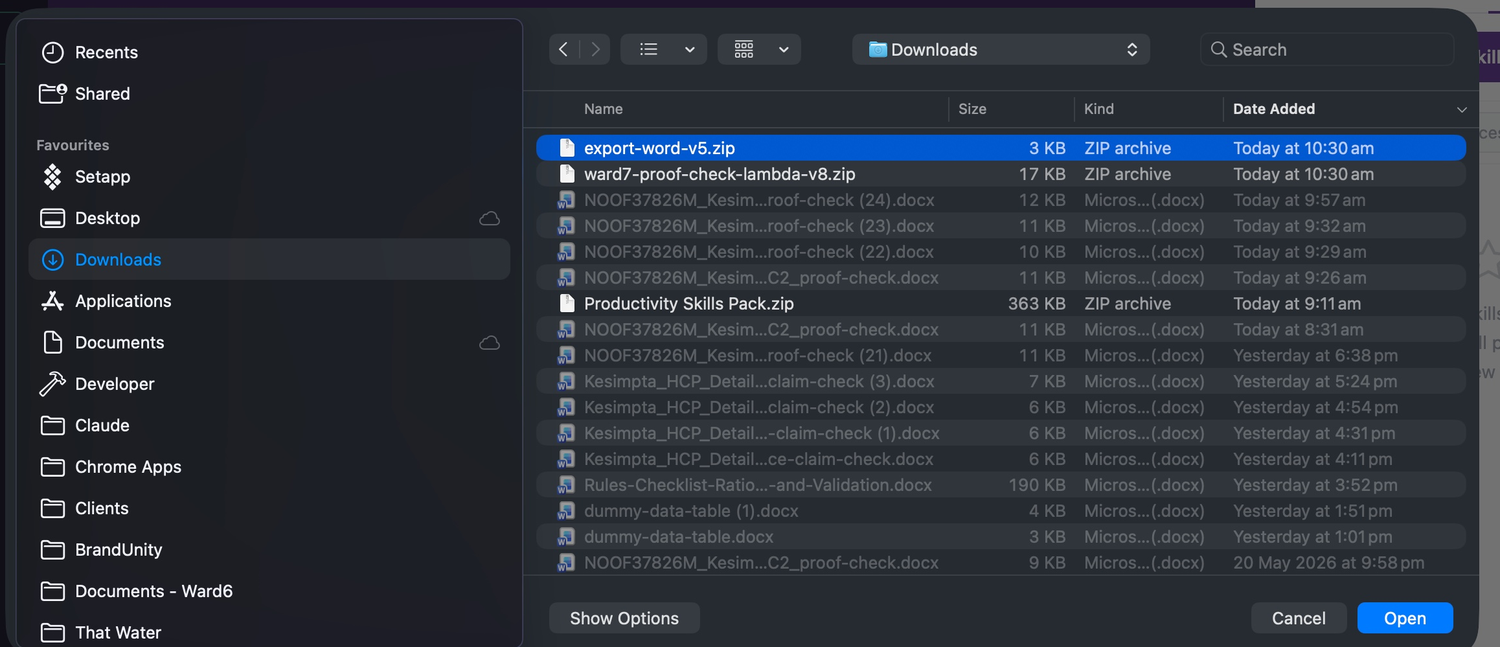
Click Upload Skill (.zip). A Finder window opens. Select the skill's .zip package, then click Open. It takes a few seconds to load and install.
Select the .zip package, then Open
05
Done, the skill is installed
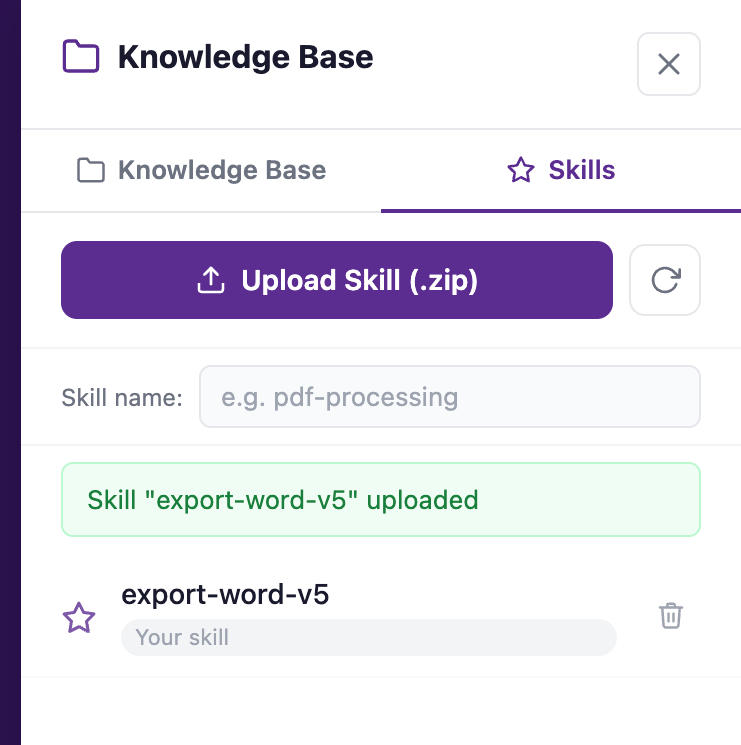
A confirmation message appears: "Skill uploaded". The skill now shows in the list and is ready to use.
For more about what a skill does and how to use it, download its documentation: every skill listed on the Skills tab of this site has an associated document you can download there.
Installed and ready to use
Removing a skill
When a skill is replaced by a newer version, or you simply no longer need it, you can remove it from the Skills tab in a single click.
01
Find the skill in the Skills tab
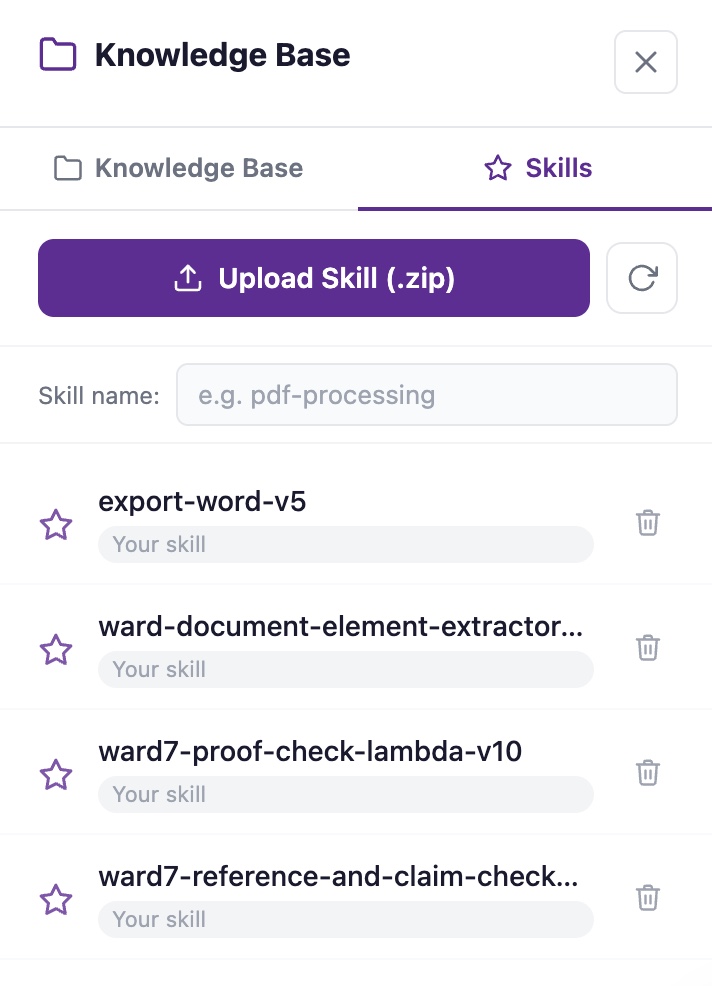
Open the Knowledge Base panel and switch to the Skills tab, the same place you upload from. Each installed skill sits on its own row, with a star icon on the left and the skill name in the middle.
On the far right of each row is a bin (delete) icon. That is the control you use to remove a skill.
The bin icon at the far right of each row
02
Click the bin icon to remove it
Click the bin icon on the row for the skill you want to remove. The skill is taken out of the list straight away and is no longer available to use.
Nothing else is affected: your Knowledge Base, other skills, and your documents all stay exactly as they were. If you need the skill back later, just upload its .zip package again from the same tab.
To upgrade a skill to a newer version, remove the old one this way, then install the new package using the steps above.
This is the living record of which reference documents each skill consumes, and where each skill loads them from. It covers the Ward6 and Ward7 pilot skills.
Maintenance: update this record whenever a reference document is added, removed, renamed or archived, or when a skill's loaded-file set changes. Add a dated line to the change log.
Download the files
Download any reference document individually from the table, or grab a ward's full set (its ward, brand and shared files) in one zip.
● mandatory — loaded at runtime; the skill hard-fails if missing
◐ optional — loaded if present, with a graceful fall-back if missing
○ source or maintenance only (not loaded by the skill)
blank cell: not used by that skill
Matrix
Documents are per ward unless marked (brand). Superscripts refer to the notes below.
Document
S1
S2
S3
S4
S5
Rules Checklist
●
House Style
○1
●
References Style
○1
◐2
●
Voice & Tone
◐
Approved Terms (brand)
◐3
●
Approved Claims (brand)
●
●
Email Templates (brand)
◐
Audiences (brand)
◐
Brand Values (brand)
●4
Compliance & Regulatory Framing
Digital Writing
Production Workflow
Style Architecture & Skill Map
References
1.House Style and References Style aren't loaded by Proof Check at runtime. They're the human-maintenance sources for the Rules Checklist. If a rule sits in the source document but not the checklist, the skill doesn't enforce it.
2.For S2, the Ward References Style file is optional: if missing, the Reference & Claim Checker skips the Format inconsistency category and notes that citation format checks were partial.
3.For S1, the brand Approved Terms file is optional: if missing, Proof Check skips the Terminology category and continues with the other four (Spelling, Punctuation, Style, Reference).
4.Skill 5's visual spec is baked into the skill, not held in a document. It loads only the brand's Brand Values.md. Ward 6 has no visual spec yet, so Ward 6 jobs borrow the Ward 7 spec.